How to Automate Instagram Posting with OpenClaw AI Agent via Postpost
TL;DR
Learn how to schedule Instagram photos, carousels, Reels, and Stories using OpenClaw AI agent and Postpost. Complete guide with OAuth setup, code examples in JavaScript and Python, and Instagram media limits reference.
Why Automate Instagram Posting with an AI Agent?
Instagram is the second most-used social platform for brand marketing, yet its API has a reputation for being restrictive and complex. Manual posting works fine for a solo creator — but once you're managing multiple accounts, scheduling Reels, or running campaigns across platforms, the workflow breaks down fast.
This is where OpenClaw — an open-source autonomous AI agent — combined with Postpost changes the game. Instead of writing API calls or clicking through dashboards, you describe what you want in plain English and the AI handles everything: scheduling, media uploads, cross-platform posting, and even respecting Instagram's complex media limits automatically.
What you'll learn in this guide:
- How to connect your Instagram Business account to Postpost via OAuth
- How to post photos, carousels, Reels, and Stories via OpenClaw
- Instagram's media limits — sizes, durations, formats — all in one place
- The complete flow: OpenClaw → Postpost → Meta Graph API

What Is OpenClaw?
OpenClaw is an open-source autonomous AI agent that connects to external services via MCP (Model Context Protocol). Think of it as an AI assistant that can take actions — not just answer questions. When connected to Postpost's MCP server, OpenClaw gains the ability to:
📝 Create & Schedule Posts
Draft and schedule Instagram posts with text, images, and video — all through natural language commands.
📊 Cross-Platform Posting
Publish to Instagram, LinkedIn, X, Telegram, and more — simultaneously, from one command.
🖼️ Upload Media
Get presigned upload URLs, attach images and videos to posts, handle carousel creation.
📅 Manage Your Calendar
View scheduled posts, reschedule, cancel, or update content — all conversationally.
Step 1: Connect Instagram to Postpost (OAuth Setup)
Before OpenClaw can post to Instagram, you need to connect your Instagram Business account to Postpost. This is a one-time setup done through the Postpost dashboard.
⚠️ Requirement: Instagram Business Account
Personal and Creator Instagram accounts are not supported by Meta's API. You must have an Instagram Business account linked to a Facebook Page. This is a Meta requirement, not a Postpost limitation.
OAuth Connection Walkthrough
- Open the Postpost Dashboard — Navigate to app.postpost.dev and log in to your account.
- Go to Connections — Click "Connections" in the left sidebar, then click "+ Add Connection".
- Select Instagram — Choose Instagram from the platform list. You'll see the OAuth consent screen.
- Authorize with Facebook — Click "Continue with Facebook". Meta's OAuth flow will ask you to:
- Select the Facebook Page linked to your Instagram Business account
- Grant permissions for content publishing, media management, and account insights
- Confirm & Done — Once authorized, your Instagram account appears in the Connections list with its platform ID (e.g.,
instagram-17841400123456789). You'll need this ID for API calls and OpenClaw configuration.

💡 Pro tip
After connecting, you can find your Instagram platformId via the List Connections API endpoint or directly in the dashboard. OpenClaw will auto-detect available platforms, so you don't need to remember the ID.
Step 2: Set Up OpenClaw with Postpost MCP
With Instagram connected, you now configure OpenClaw to communicate with Postpost. See the full MCP client setup guide for detailed instructions. There are two approaches:
Option A: MCP Protocol
Best for interactive AI assistants (Claude Code, Cursor). The AI can call 18 Postpost tools conversationally.
{
  "mcpServers": {
    "postpost": {
      "type": "http",
      "url": "https://mcp.postpost.dev",
      "headers": {
        "Authorization": "Bearer sk_YOUR_API_KEY"
      }
    }
  }
}
Option B: REST API (Direct)
Best for autonomous agents. Simpler HTTP requests, no session management, easier to debug.
curl -X POST \
  https://api.postpost.dev/api/v1/create-post \
  -H "x-postpost-key: sk_YOUR_KEY" \
  -H "Content-Type: application/json" \
  -d '{"content": "Hello!",
       "platforms": ["instagram-ID"]}'
For OpenClaw specifically, the REST API approach is recommended. It's simpler, has no session state to manage, and is easier to debug. MCP shines when you're working interactively with Claude Code or Cursor in your IDE.
Posting to Instagram: Content Types Explained
Instagram supports four distinct content types through the Meta Graph API. Each has different media requirements, character limits, and behavior. For the complete technical reference, see the Instagram platform documentation. Let's break down each one.
📸 Photo Posts (Single Image)
The simplest content type. One image with a caption. Note that Instagram requires JPEG format only — PNG files will be rejected by the API. See the media upload guide for the full upload workflow.
JavaScript
// Step 1: Create the post const response = await fetch('https://api.postpost.dev/api/v1/create-post', { method: 'POST', headers: { 'Content-Type': 'application/json', 'x-postpost-key': 'sk_YOUR_API_KEY' }, body: JSON.stringify({ content: 'Launching our new product line today! 🚀\n\nAfter months of development, we\'re thrilled to share what we\'ve been working on.\n\n#launch #startup #newproduct', platforms: ['instagram-17841400123456789'], scheduledTime: '2026-03-25T09:00:00Z' }) });const { postGroupId } = await response.json();
// Step 2: Get presigned upload URL const uploadRes = await fetch(
https://api.postpost.dev/api/v1/upload-media/${postGroupId}?filename=product-hero.jpg, { headers: { ‘x-postpost-key’: ‘sk_YOUR_API_KEY’ } } ); const { uploadUrl } = await uploadRes.json();
// Step 3: Upload the image await fetch(uploadUrl, { method: ‘PUT’, headers: { ‘Content-Type’: ‘image/jpeg’ }, body: imageBuffer });
Python
import requestsAPI_KEY = ‘sk_YOUR_API_KEY’ BASE = ‘https://api.postpost.dev/api/v1’ headers = {‘Content-Type’: ‘application/json’, ‘x-postpost-key’: API_KEY}
Step 1: Create post
resp = requests.post(f’{BASE}/create-post’, headers=headers, json={ ‘content’: ‘Launching our new product line today! 🚀’, ‘platforms’: [‘instagram-17841400123456789’], ‘scheduledTime’: ‘2026-03-25T09:00:00Z’ }) post_group_id = resp.json()[‘postGroupId’]
Step 2: Get upload URL
upload_resp = requests.get( f’{BASE}/upload-media/{post_group_id}?filename=hero.jpg’, headers={‘x-postpost-key’: API_KEY} ) upload_url = upload_resp.json()[‘uploadUrl’]
Step 3: Upload image
with open(‘hero.jpg’, ‘rb’) as f: requests.put(upload_url, headers={‘Content-Type’: ‘image/jpeg’}, data=f)
🎠 Carousel Posts (2–10 Images)
Carousels let you share up to 10 images in a single swipeable post. They're great for step-by-step guides, product showcases, or before/after comparisons.
Important limitations
- Minimum 2 items, maximum 10 items (native app allows 20, but the API caps at 10)
- Cannot mix images and videos in the same carousel — pick one media type
- All images must be JPEG format, max 8 MB each
- Aspect ratios: 4:5 (portrait) to 1.91:1 (landscape)
// Create a carousel with multiple images
const response = await fetch('https://api.postpost.dev/api/v1/create-post', {
  method: 'POST',
  headers: {
    'Content-Type': 'application/json',
    'x-postpost-key': 'sk_YOUR_API_KEY'
  },
  body: JSON.stringify({
    content: '5 design principles every startup should follow 👇\n\nSwipe through for the complete breakdown.\n\n#design #startup #ux',
    platforms: ['instagram-17841400123456789'],
    scheduledTime: '2026-03-26T14:00:00Z'
  })
});

const { postGroupId } = await response.json();

// Upload each image (2-10 images)
const images = ['slide1.jpg', 'slide2.jpg', 'slide3.jpg', 'slide4.jpg', 'slide5.jpg'];

for (const filename of images) {
  const uploadRes = await fetch(
    `https://api.postpost.dev/api/v1/upload-media/${postGroupId}?filename=${filename}`,
    { headers: { 'x-postpost-key': 'sk_YOUR_API_KEY' } }
  );
  const { uploadUrl } = await uploadRes.json();
  const imageData = fs.readFileSync(filename);
  await fetch(uploadUrl, {
    method: 'PUT',
    headers: { 'Content-Type': 'image/jpeg' },
    body: imageData
  });
}
🎬 Reels (Video Posts)
Reels are Instagram's primary video format and get significantly more reach than static posts. The API supports videos up to 15 minutes, but only videos between 5 and 90 seconds are eligible for the Reels tab and Explore page.
const response = await fetch('https://api.postpost.dev/api/v1/create-post', {
  method: 'POST',
  headers: {
    'Content-Type': 'application/json',
    'x-postpost-key': 'sk_YOUR_API_KEY'
  },
  body: JSON.stringify({
    content: 'Quick tutorial: How to set up CI/CD in 60 seconds ⚡\n\n#devops #tutorial #coding',
    platforms: ['instagram-17841400123456789'],
    platformSettings: {
      instagram: {
        videoType: 'REELS'  // This is the default
      }
    },
    scheduledTime: '2026-03-27T12:00:00Z'
  })
});

const { postGroupId } = await response.json();

// Upload video file (MP4 recommended, max 300 MB)
const uploadRes = await fetch(
  `https://api.postpost.dev/api/v1/upload-media/${postGroupId}?filename=tutorial.mp4`,
  { headers: { 'x-postpost-key': 'sk_YOUR_API_KEY' } }
);
const { uploadUrl } = await uploadRes.json();
await fetch(uploadUrl, {
  method: 'PUT',
  headers: { 'Content-Type': 'video/mp4' },
  body: videoBuffer
});
📱 Stories (Ephemeral Content)
Stories disappear after 24 hours and appear at the top of followers' feeds. They're ideal for time-sensitive announcements, behind-the-scenes content, or quick updates.
Stories vs Reels
- Stories: Max 60 seconds, 100 MB, disappear in 24h
- Reels: Up to 15 min (API), 300 MB, permanent
- Stories: 9:16 aspect ratio recommended
- Both require
videoTypeinplatformSettings
Story Limitations
- No carousel support in Stories
- No link stickers via API
- No polls, quizzes, or interactive elements
- Caption text is overlaid on the media
import requests

response = requests.post(
    'https://api.postpost.dev/api/v1/create-post',
    headers={
        'Content-Type': 'application/json',
        'x-postpost-key': 'sk_YOUR_API_KEY'
    },
    json={
        'content': '🔥 Big announcement dropping tomorrow!',
        'platforms': ['instagram-17841400123456789'],
        'platformSettings': {
            'instagram': {
                'videoType': 'STORIES'  # Key setting for Stories
            }
        },
        'scheduledTime': '2026-03-27T18:00:00Z'
    }
)
print(response.json())
# {"success": true, "postGroupId": "abc123..."}
Instagram Media Limits — The Complete Reference
One of the most common causes of failed Instagram posts is exceeding media limits. Here's everything you need to know in one place:
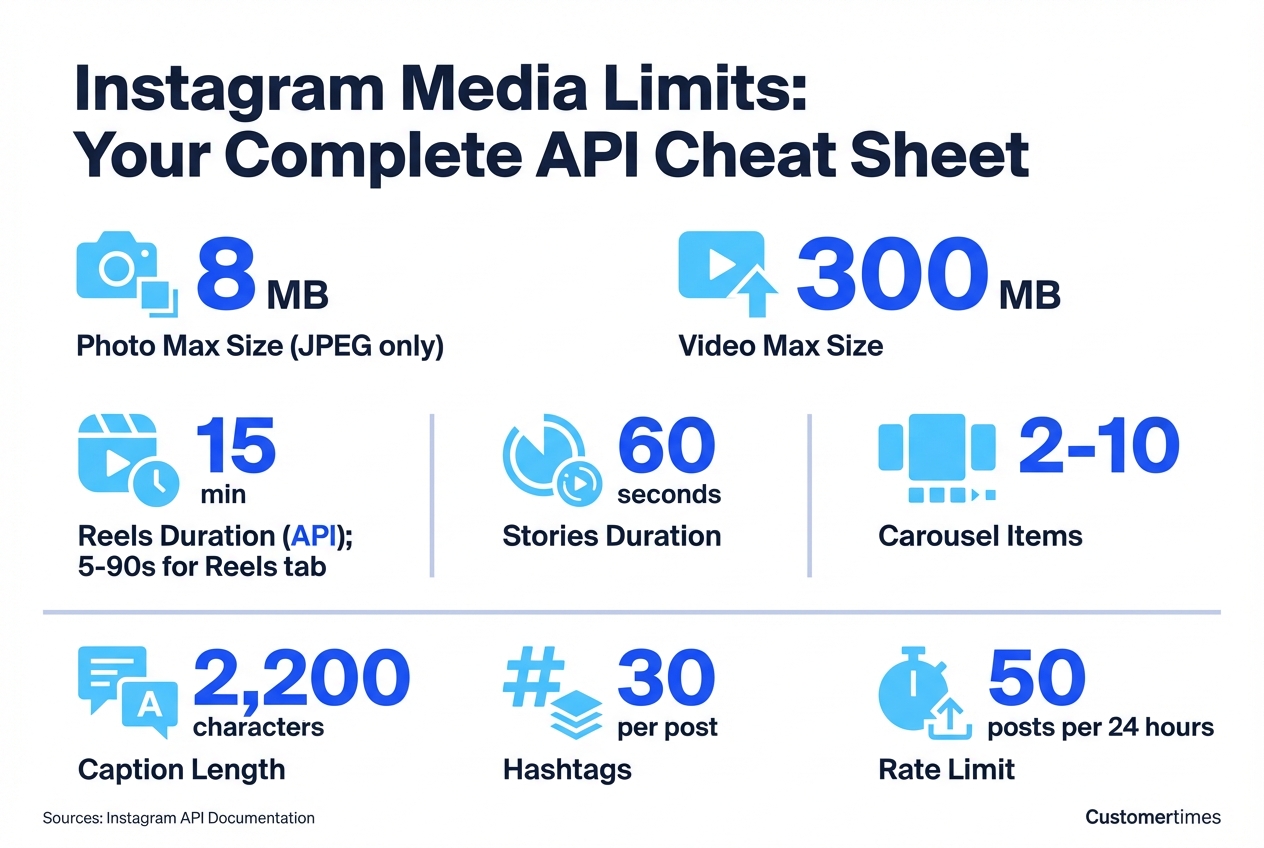
| Property | Photo Post | Carousel | Reels | Stories |
|---|---|---|---|---|
| Max file size | 8 MB | 8 MB per image | 300 MB | 100 MB |
| Format | JPEG only | JPEG only | MP4, MOV | MP4, MOV |
| Duration | — | 60s max (video) | 5s – 15 min | Max 60s |
| Aspect ratio | 4:5 to 1.91:1 | 4:5 to 1.91:1 | 9:16 recommended | 9:16 |
| Items | 1 image | 2–10 items | 1 video | 1 image or video |
| Caption | 2,200 chars | 2,200 chars | 2,200 chars | 2,200 chars |
| Hashtags | Max 30 | Max 30 | Max 30 | Max 30 |
🚫 Common Pitfalls
- PNG images will fail — Instagram's API only accepts JPEG. Convert before uploading.
- Reels tab eligibility — Only videos between 5-90 seconds appear in the Reels tab. Longer videos post as IGTV-style content.
- Mixed media in carousels — You cannot combine images and videos in a single carousel.
- Rate limit — 50 posts per 24 hours (some accounts report 25). Plan your automation accordingly.
How It Works: OpenClaw → Postpost → Meta Graph API
Understanding the architecture helps you debug issues and build trust in the automation pipeline. Here's the complete flow:
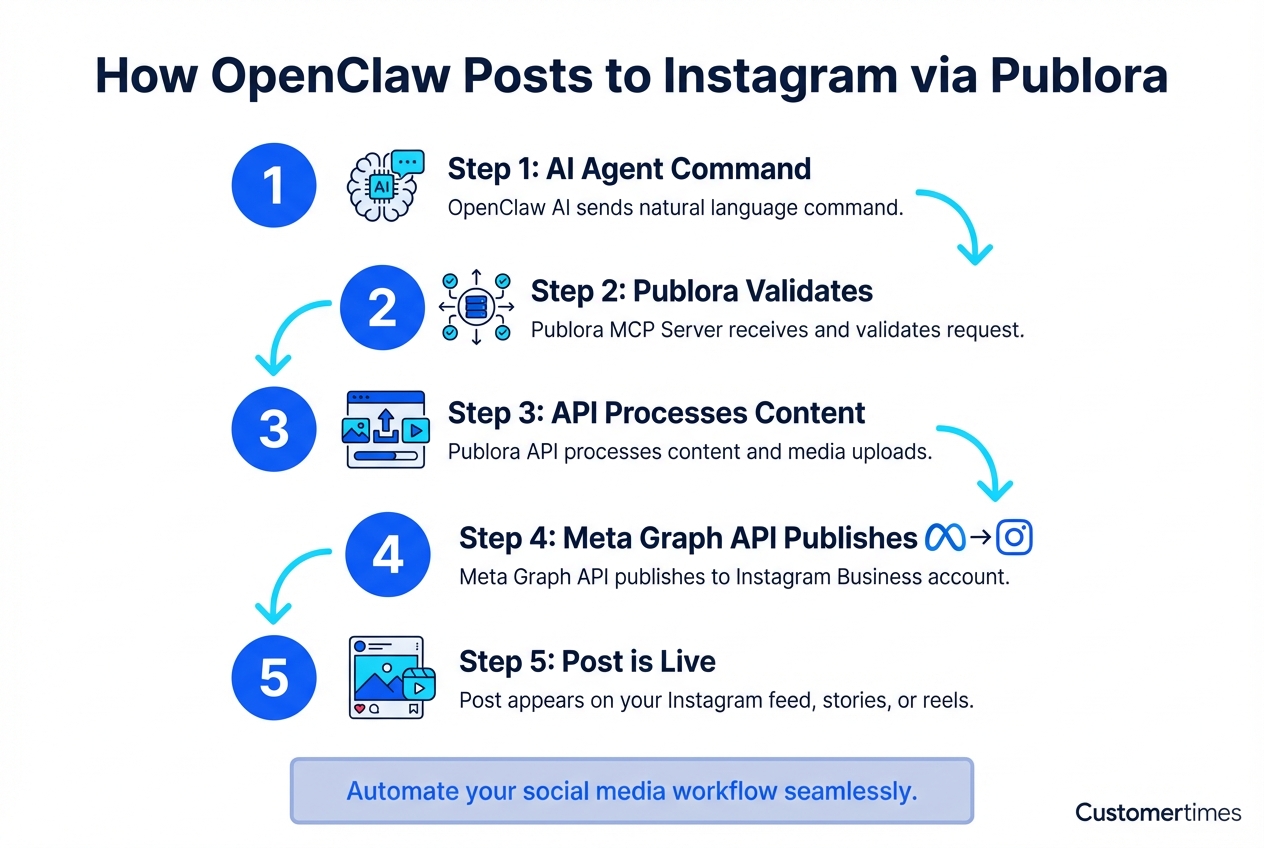
OpenClaw
AI Agent sends natural language command
Postpost MCP
Validates, formats, and queues the request
Postpost API
Handles media upload, scheduling, retries
Meta Graph API
Official Instagram Publishing API
Post published to your feed/stories
Why This Architecture Matters
100%
Official Meta API — no scraping, no violations
OAuth 2.0
Secure token-based auth — your password is never stored
18
MCP tools available — posts, analytics, connections, and more
Postpost uses Meta's official Graph API for all Instagram operations. Your content flows through secure, authenticated API endpoints — the same ones used by Meta's own tools. No browser automation, no scraping, no risk of account suspension.
Using OpenClaw: Real Conversation Examples
Here's what it actually looks like when you use OpenClaw with Postpost to manage Instagram:
You: Schedule an Instagram post for tomorrow at 9am with the text "Excited to announce our Series A! 🎉" and attach the image funding-announcement.jpg
OpenClaw: Done! I've scheduled your Instagram post:
Content: "Excited to announce our Series A! 🎉"
Image: funding-announcement.jpg (uploaded, 2.3 MB)
Scheduled: March 26, 2026 at 9:00 AM UTC
Post ID: pg_abc123
You: Actually, also post that to LinkedIn and X at the same time
OpenClaw: Updated! The post is now scheduled to go out simultaneously on:
• Instagram
• LinkedIn
• X (Twitter)
All three platforms will publish at 9:00 AM UTC tomorrow.
You: Create a carousel for Instagram with 5 slides from the images in /marketing/campaign-q1/
OpenClaw: I've created a carousel post with 5 images:
1. slide-1-hero.jpg (1.8 MB)
2. slide-2-features.jpg (2.1 MB)
3. slide-3-pricing.jpg (1.5 MB)
4. slide-4-testimonials.jpg (1.9 MB)
5. slide-5-cta.jpg (1.2 MB)
Ready to schedule — when should it go live?
Best Practices for Instagram Automation
✅ Do
- Convert all images to JPEG before uploading
- Keep Reels between 5-90 seconds for maximum reach
- Use scheduling — posting at optimal times matters
- Add alt text for accessibility
- Test with a single post before running batch campaigns
- Monitor the 50 posts/day rate limit
❌ Don't
- Upload PNG images — they'll be rejected
- Mix images and videos in carousels
- Exceed 30 hashtags per post
- Try to post to personal accounts (Business only)
- Ignore the first 125 characters — that's what users see before "more"
- Schedule Stories for more than 24 hours ahead — they expire
Getting Started in 5 Minutes
Ready to automate your Instagram posting? Here's the fastest path:
- Create a Postpost account — free trial available on the Pro plan
- Connect Instagram — Go to Connections → Add → Instagram → Authorize via Facebook
- Get your API key — Settings → API Keys → Create Key (authentication docs)
- Configure OpenClaw — Add Postpost as an MCP server or use the REST API directly
- Start posting — Tell OpenClaw what to post and when
Ready to automate your Instagram?
Start scheduling Instagram posts, Reels, Stories, and carousels with OpenClaw + Postpost today.
Get Started Free →Frequently Asked Questions
Do I need an Instagram Business account, or will a Creator account work?
You need an Instagram Business account linked to a Facebook Page. Meta's Content Publishing API does not support personal or Creator accounts. This is a Meta platform requirement — not a Postpost limitation. You can switch to a Business account in the Instagram app under Settings → Account → Switch to Professional Account → Business.
Can OpenClaw post Instagram Reels and Stories, or just regular photo posts?
OpenClaw can post all four Instagram content types via Postpost: photo posts, carousels (2–10 images), Reels (video up to 15 minutes), and Stories (up to 60 seconds, disappear after 24 hours). Set the videoType field in platformSettings.instagram to "REELS" or "STORIES" to control the post type. See the Instagram platform docs for details.
Why can't I upload PNG images to Instagram via the API?
Instagram's Content Publishing API only accepts JPEG images. PNG, WebP, and other formats are rejected with an error. This is a Meta API restriction. Convert your images to JPEG before uploading. Most image libraries (Pillow in Python, Sharp in Node.js) can do this in one line of code.
Is it safe to automate Instagram posting? Will my account get banned?
Yes — Postpost uses Meta's official Graph API with proper OAuth 2.0 authentication. This is the same API that Meta provides to approved third-party tools. There is no scraping, browser automation, or unofficial access involved. As long as you respect the rate limits (50 posts per 24 hours) and follow Instagram's community guidelines, your account is safe.
What's the difference between using MCP and the REST API with OpenClaw?
MCP (Model Context Protocol) is best for interactive AI assistants like Claude Code or Cursor — the AI can call 18 Postpost tools conversationally. The REST API is better for autonomous agents like OpenClaw — it's simpler HTTP requests with no session management. Both give you the same capabilities. For OpenClaw specifically, the REST API is recommended. See the MCP client setup guide for comparison.
Can I post to Instagram and other platforms at the same time?
Yes. Postpost supports cross-platform posting to Instagram, LinkedIn, X (Twitter), Threads, Telegram, Facebook, TikTok, YouTube, Mastodon, Bluesky, and Pinterest. Simply include multiple platform IDs in the platforms array and the post will be published to all of them simultaneously. Each platform's specific formatting and limits are handled automatically.
How many Instagram posts can I schedule per day?
Instagram's API allows up to 50 posts per 24-hour rolling window, though some accounts report a lower limit of 25. This is an Instagram-enforced rate limit, not a Postpost limit. Postpost's own plan limits (post quotas, scheduling horizons) are separate and depend on your subscription tier — check your plan limits in the dashboard.
Can I mix images and videos in an Instagram carousel?
No. Instagram's API does not allow mixing images and videos in a single carousel post. All items must be the same media type — either all images (JPEG, max 8 MB each) or all videos (MP4, max 60 seconds each in carousels). This restriction applies to the API; the native Instagram app has different rules. If you need both, create separate posts.
Further Reading
- Instagram Platform Reference — Complete API documentation
- OpenClaw Integration Guide — Detailed MCP setup
- Media Upload Workflow — Step-by-step upload guide
- MCP Client Setup — Claude Code, Cursor, and more
- Scheduling Guide — Timezone handling and best practices
Related Articles

Unlock advanced search twitter: Expert Tips & Tricks
Complete guide to X (Twitter) Advanced Search in 2026. Learn all 20+ search operators, Boolean logic, engagement filters, geo-targeting, and ready-to-use query templates for brand monitoring, content research, and competitive analysis.

8 Proven Strategies: Best Time to Post on Instagram 2025
Master Instagram timing with 8 proven strategies. Understand the algorithm and reach a wider audience with optimal post times.

Best Time to Post on LinkedIn in 2026 (Data From 2M+ Posts)
The best time to post on LinkedIn in 2026 is Tuesday through Thursday between 10:00 AM and 12:00 PM. Data from 2M+ posts reveals the optimal days, times, and content formats for maximum engagement — plus how LinkedIn's new Depth Score algorithm changes your posting strategy.

Discover the Best Time to Post on TikTok – Tips for 2025
Find the optimal posting times on TikTok to maximize reach and engagement based on your audience behavior.